1. What is remote content in email?
Remote content refers to parts of an email—such as images, logos, stylesheets, or videos—that are not attached directly to the email file itself. Instead, they are hosted on an external server. When you open the email, your mail client (Thunderbird) attempts to connect to the internet to download and display these elements.
By default, Thunderbird blocks this content to protect your privacy, often displaying a placeholder icon or a notification bar instead of the images.
2. Why is allowing remote content risky?
Allowing remote content to load automatically poses significant privacy and security risks. Here is why you should be cautious:
- User Tracking & Profiling: When your email client downloads an image, the sender's server logs your IP address. This reveals your approximate physical location and tells the sender exactly when you opened the message.
- Email Validation for Spammers: Spammers often use invisible "tracking pixels." If your email client loads this pixel, it confirms to the spammer that your email address is real and active. This usually results in receiving even more spam.
- Browser/Device Fingerprinting: The request sent to the server can reveal information about your operating system and software version, helping build a digital profile of your device.
- Malicious Attacks: In rare cases, compromised images or scripts loaded remotely can be used to exploit vulnerabilities in software to deliver malware.
Reference: For more details, read the official Mozilla support page: Remote Content in Messages - Mozilla Support
3. How to enable remote content per email
- Open the email in Thunderbird.
- Look for the yellow notification bar at the top that says: "To protect your privacy, Thunderbird has blocked remote content in this message."
- Click the Preferences button on the right side of that bar.
- Select "Show remote content in this message" to view it just this once, or "Allow remote content from [Sender]" to permanently trust this email address.

4. How to disable remote content globally
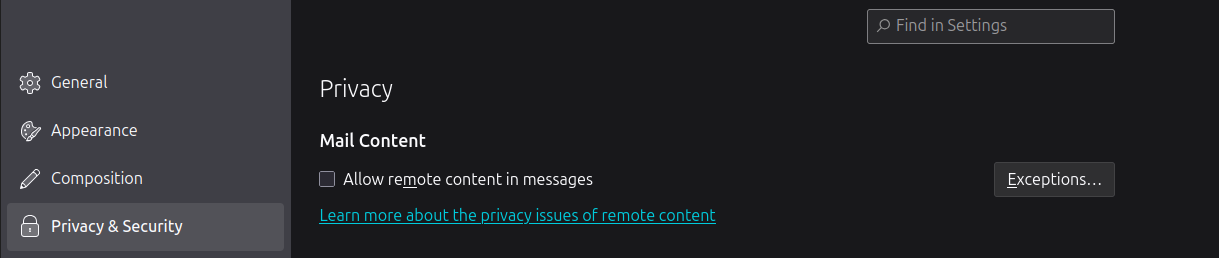
You can control the default behavior for all incoming emails. Security Recommendation: Keep this setting Disabled (unchecked).
- Go to Settings.
- Select Privacy & Security from the left sidebar.
- Scroll down to the Web Content section.
- To block content (Recommended), ensure the box "Allow remote content in messages" is unchecked.
- To allow content for everyone (Risky), check the box.
5. How to check the list of approved senders
- Go to Settings > Privacy & Security > Web Content.
- Click the "Exceptions..." button located next to the "Allow remote content" checkbox.
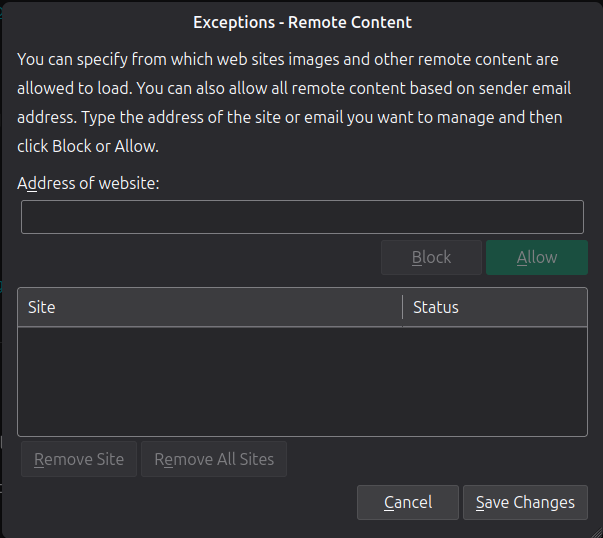
- A popup window will appear listing all the email addresses or sites you have allowed.
- You can select an address and click "Remove Site" to stop automatically loading images from them.